Spell-checking
Unblu provides a spellchecker in the WYSIWYG message editor. The spellchecker runs in the browser using Hunspell, the same spell-checking engine used by LibreOffice, Mozilla Firefox, and Google Chrome. It highlights misspelled words as users type and offers suggestions for corrections.
Prerequisites
To use the spellchecker, you must meet the following conditions:
-
You must have a valid license for Unblu Aria.
-
You must enable the spellchecker: com.unblu.messenger.enableSpellChecking. It’s enabled by default.
-
You must enable the WYSIWYG editor for the relevant participant roles. To enable it, add the participant roles to com.unblu.conversation.message.chatMessageAsMarkdownEnabled.
How spell-checking works
When spell-checking is active, misspelled words in the message input are underlined in red as the user types.
Clicking a misspelled word opens a popup with up to three suggested corrections (configurable with com.unblu.form.markdowneditor.spellcheck.spellingMaxSuggestions). Selecting a suggestion replaces the misspelled word.
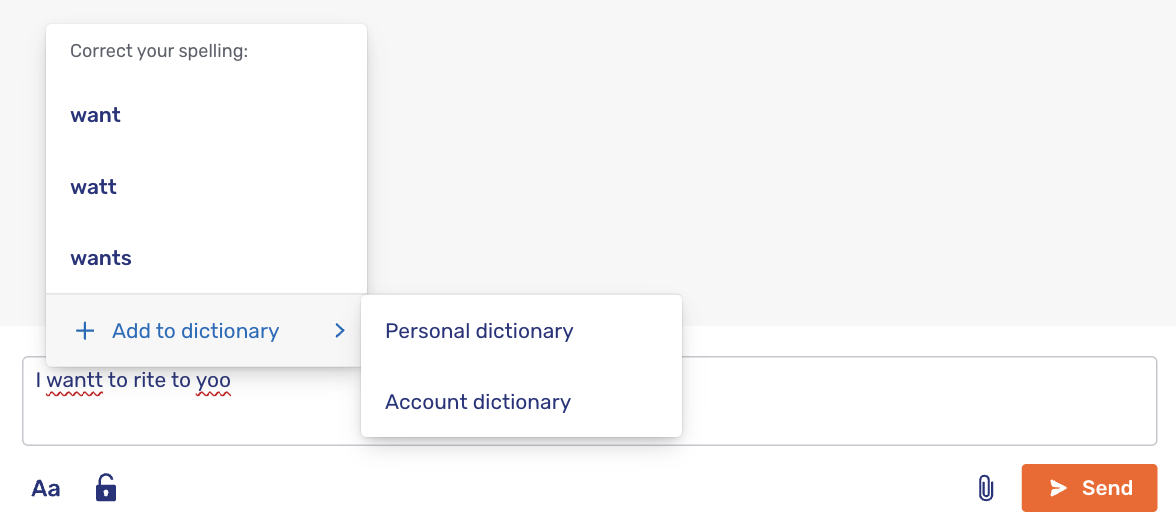
For agents, the popup may also offer the option to add the word to their personal dictionary or to the account dictionary, depending on the dictionaries available to them. These options aren’t available to visitors. Adding a word to a dictionary means the spellchecker no longer flags it as misspelled.
Language selection
The message input toolbar includes a language button that lets users control spell-checking. When spell-checking is enabled, the button displays an ABC icon  alongside the name of the currently selected language. (If spell-checking is disabled, it displays the language icon
  instead.) Clicking it opens a menu with a Spell check toggle and a list of all available languages, sorted alphabetically.
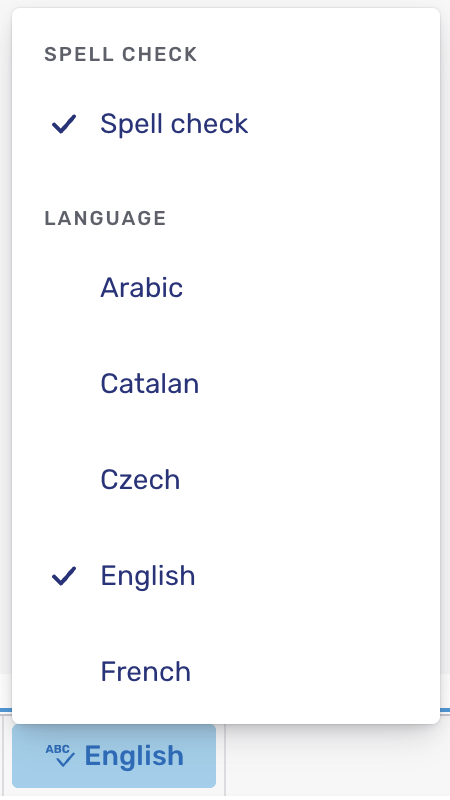
The Spell check toggle turns spell-checking on or off for the message input. It’s enabled by default; to change this, use com.unblu.form.markdowneditor.spellcheck.spellCheckEnabledByDefault. To remove the toggle from the menu, set com.unblu.form.markdowneditor.spellcheck.showSpellCheckMenuEntry to false.
Selecting a language from the list sets the language used for spell-checking. Within a session, each conversation remembers its selected language.
To hide the language button, set com.unblu.conversation.messaging.ui.messageinput.toolbar.enableLanguageButton to false.
Supported languages
The language menu lists all of the languages Unblu supports. Unblu includes a spellcheck dictionary for some of these languages. For the others, you must upload a custom dictionary before you can spell-check in that language.
| Code | Language | Bundled dictionary |
|---|---|---|
ar |
Arabic |
Yes |
ca |
Catalan |
No |
cs |
Czech |
No |
de |
German |
Yes |
en |
English |
Yes |
es |
Spanish |
Yes |
fr |
French |
Yes |
it |
Italian |
Yes |
pl |
Polish |
Yes |
pt |
Portuguese |
Yes |
ro |
Romanian |
Yes |
ru |
Russian |
Yes |
sk |
Slovak |
Yes |
sl |
Slovenian |
Yes |
sr |
Serbian |
Yes |
sv |
Swedish |
Yes |
th |
Thai |
No |
zh-Hans |
Simplified Chinese |
No |
zh-Hant |
Traditional Chinese |
No |
In some cases, the bundled dictionary is a specific regional variant:
-
German uses Swiss German (de_CH).
-
English uses American English (en_US).
-
Portuguese uses Brazilian Portuguese (pt_BR).
-
Serbian uses the Cyrillic script.
For a language without a bundled dictionary, you can add one by uploading a custom dictionary file. You can also replace the bundled dictionary for any language. Refer to Adding custom dictionary files below for details.
Dictionaries
Dictionaries let users and administrators add words that the spellchecker should accept. This is useful for domain-specific terminology, product names, abbreviations, and other words not found in the standard language dictionaries.
Unblu supports two types of dictionary:
-
Account dictionary: A shared dictionary managed by administrators. Words added to the account dictionary are available to all users in the account.
To disable the account dictionary, set com.unblu.dictionary.showAccountDictionary to
false. -
Personal dictionary: A private dictionary for individual agents. Each agent can manage their own personal dictionary from the user menu.
To disable personal dictionaries, set com.unblu.dictionary.showPersonalDictionary to
false.
Managing the account dictionary
Administrators manage the account dictionary in the Aria interface, on the Account dictionary tab of the Dictionary page. For more information, refer to the Account dictionary section of the Aria interface guide.
You can also manage account dictionary entries through the DictionaryEntryService endpoints of the Unblu web API.
Managing personal dictionaries
Agents can manage their personal dictionary from the user menu. To open it, click the user menu and select Dictionary.
To hide the Dictionary menu item, set com.unblu.ui.usermenu.showManageDictionary to false.
Agents can also add words directly from the spellcheck popup that appears when they click a misspelled word.
Adding custom dictionary files
You can upload custom Hunspell dictionary files to replace a bundled dictionary, or to add a dictionary for a supported language that doesn’t ship with one. For more information, refer to the Custom dictionary files section of the Aria interface guide.
You can also manage custom dictionaries through the Dictionaries service endpoints of the Unblu web API.
Customizing the appearance
You can customize the visual appearance of spelling errors:
-
com.unblu.form.markdowneditor.spellcheck.spellingErrorUnderlineColor: The color of the underline on misspelled words. Defaults to the error color of the current theme.
-
com.unblu.form.markdowneditor.spellcheck.spellingErrorSelectedBackgroundColor: The background color of a misspelled word when selected. Defaults to a semi-transparent version of the error color.
See also
-
For information on configuring the message editor that the spellchecker integrates with, refer to WYSIWYG editor.
-
For information on Markdown support in Unblu, refer to Markdown in Unblu.
-
For information on managing the entries in account and personal dictionaries through the Unblu web API, refer to the
DictionaryEntryServicesection of the Unblu web API reference. -
For information on managing custom dictionary files through the Unblu web API, refer to the
Dictionariessection of the Unblu web API reference.