Dialog bots
Dialog bots have a one-to-one dialog with a user during the onboarding, reboarding, or offboarding phase of that person. Unblu supports two types of dialog bot:
Custom dialog bots
| This section assumes your bot is targeting version 4 of the Unblu web API. If you’re using version 3, refer to the documentation of Unblu 7. Unblu 8 supports version 3 of the Unblu web API for reasons of backward compatibility only. |
Dialog bots tap in to the onboarding, reboarding, or offboarding process of a person into or out of a conversation.
Unblu provides tailored APIs to participate in this process allowing maximum focus on integrating the underlying bot framework with Unblu and minimum overhead of API calls:
-
Unblu makes sure only one person is in the dialog with the bot to allow a seamless integration with existing bot frameworks.
-
Dialogs can be:
-
Handed off to the next bot or an agent
-
Solved so no further involvement from other bots or agents is required
-
Canceled to stop the boarding process
-
-
Dialog bots can use all Unblu web API services during the dialog to alter conversations and persons.
If you add one or more dialog bots to the onboarding, reboarding, or offboarding process, the messages exchanged during the process appear as part of a bot thread. For more information about bot threads, refer to the documentation on bot threads and the concierge and the conversation states ONBOARDING, REBOARDING, and OFFBOARDING.
Adding a dialog bot to the onboarding process precludes fast onboarding, because Unblu doesn’t know whether the bot will ask the visitor to answer any questions. This doesn’t mean the onboarding process is slower than usual. It merely means that Unblu is unable to complete the onboarding process without the visitor opening the conversation.
Setting up a custom dialog bot
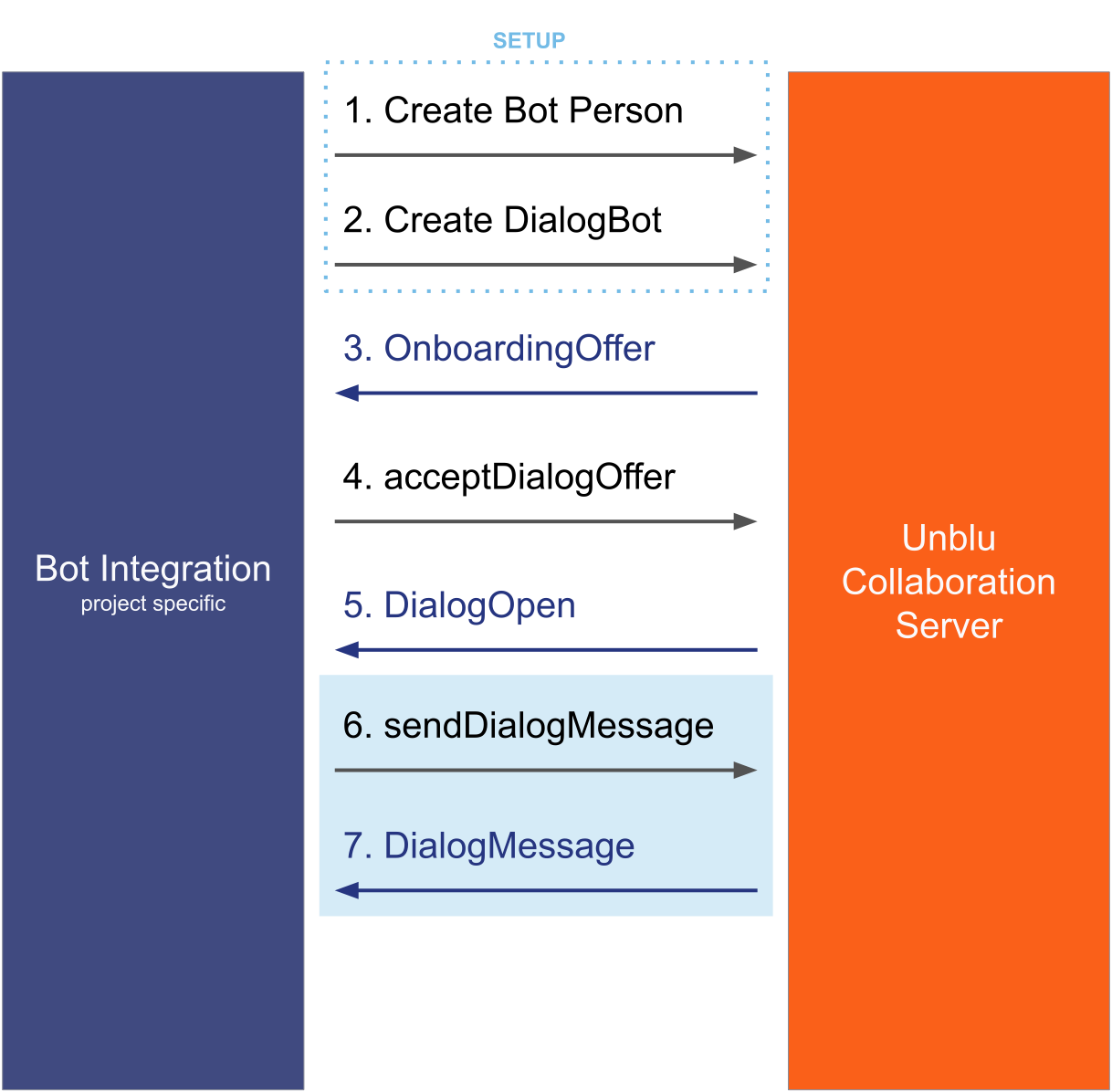
The first step when integrating a dialog bot is to set it up.
If you haven’t created a bot person yet, do that first.
Next, create a dialog bot. This involves defining things such as the endpoint for outbound requests, which persons should be on- and offboarded, and so on. You must also specify which version of the Unblu web API the dialog bot targets.
Reboarding can only be enabled or disabled as it only involves the visitor. For more details refer to the documentation of the /bots/create endpoint.
Dialog bots must be enabled in the conversation template that Unblu should offer to include them in. To do so, review the configuration properties com.unblu.conversation.bot.enableAllExternalBots, com.unblu.conversation.bot.mandatoryExternalBotIds, and com.unblu.conversation.bot.optionalExternalBotIds on the conversation template in question.
With that done, your dialog bot is ready to participate in the onboarding, reboarding, or offboarding of the configured persons.
Receiving and responding to a dialog offer
Once the dialog bot is set up, the Unblu server sends it an outbound request with a dialog offer each time a person matching the configured filter joins, rejoins, or leaves the conversation, respectively. The specific outbound requests are:
-
An
outbound.bot.onboarding_offerwith aBotOnboardingOfferRequestin the HTTP request body -
An
outbound.bot.reboarding_offerwith aBotReboardingOfferRequestin the HTTP request body -
An
outbound.bot.offboarding_offerwith aBotOffboardingOfferRequestin the HTTP request body
(This article only discusses the onboarding case, but the reboarding and offboarding cases follow the same lines.)
Version 4 of the Unblu web API still provides the old webhooks bot.onboarding_offer, bot.reboarding_offer, and bot.offboarding_offer to facilitate migrating from version 3 to version 4. In new implementations, use the outbound.bot.\* requests listed above. |
In the most common cases, the visitor is the dialog counterpart person. However, it’s also possible to onboard or offboard agents using a bot. Reboarding, on the other hand, is only possible for the context person of a conversation.
References to the visitor below actually mean the dialog counterpart person.
The onboarding offer serves two purposes:
-
It allows the bot to decide whether they want to be part of the onboarding, with the full context of the onboarding person and the conversation they’re joining.
-
It ensures that the bot is available. This keeps visitor waiting time to a minimum if the bot were to malfunction.
When a bot receives a outbound.bot.onboarding_offer, its HTTP response to that offer must contain a BotBoardingOfferResponse. If it doesn’t respond to the offer in a timely manner, the Unblu server considers the bot to be not working and automatically excludes it from further onboarding after a short timeout.
Each event the Collaboration Server sends has a corresponding response associated with it. The boarding offer events all share the same response type.
The table below shows the events and their associated response type:
| Outbound event | Response type |
|---|---|
If the bot declines the dialog offer, the bot’s participation in this onboarding ends there. Unblu doesn’t send any further outbound web API events for this onboarding.
If the bot accepts the offer, the dialog token passed in the body of the outbound.bot.onboarding_offer is used for all subsequent outbound web API events of this dialog. The bot is placed in the onboarding queue with all the other bots that have accepted the offer.
When it’s the turn of the bot to continue the visitor’s onboarding, Unblu sends it an outbound.bot.dialog.opened outbound request. This is the signal that the dialog between the bot and the visitor is now open and the bot can start sending messages.
All state connected to a dialog should be linked to the dialog token. The dialog token is sent in every outbound request related to this dialog and is needed for every dialog-related web API call. If a new context or conversation must be created for the underlying bot framework, this is the time to do it. The new context or conversation should be linked to the dialog token, so as to reference it later on.
The dialog remains open, and the bot is the only party interacting with the visitor, until Unblu sends the outbound.bot.dialog.closed outbound request. For more information about this, refer to the section closing a dialog below.
Even though a bot may have accepted a dialog offer, there’s no guarantee that it will receive the DialogOpen event for this dialog. The reason for this may be that the conversation is ended or deleted before it’s the bot’s turn, or that another bot solves or aborts the dialog. To avoid memory leaks, you should therefore make sure your bot implementation doesn’t keep any state from the dialog offer and dialog open requests. |
Disable file upload during onboarding and offboarding
By default, the Visitor UIs provide the same functionality during onboarding and offboarding as they do in other phases of a conversation. In particular, if the configuration property com.unblu.conversation.file.allowFileCobrowsing is true, visitors can upload files to a conversation during onboarding and offboarding.
If you wish to prevent this, set the following two configuration properties to false:
This will ensure that visitors can’t upload files to a conversation unless it’s either in the queue or has been answered by an agent.
The active phase of a dialog
During the active phase of a dialog, the bot can use the Unblu web API to send different types of chat messages to the visitor. The bot integration code may also use other web API services, such as the Conversations or Persons services, to influence the routing of the conversation or the visitor’s details. Additionally, Unblu sends the bot an outbound.bot.dialog.message outbound request for every message either the bot or the visitor sends.
Once the other party in the conversation sends a message, the dialog bot may take a few moments to prepare a response. To reassure the other party that something is happening, Unblu can display an indicator while the bot works. Each dialog bot has an indicator type that determines what Unblu displays:
-
NONE: Unblu displays no indicator. -
TYPING: Unblu displays a typing indicator. -
THINKING: Unblu displays a thinking indicator with configurable texts and an animation, described below.
You set the indicator type per bot, either in the Aria interface or with the web API. In the web API, set the botIndicatorType field (an EBotIndicatorType value) when you create or update the bot.
With the TYPING indicator type, Unblu displays a typing indicator automatically once the other party sends a message. Alternatively, you can use the web API endpoints /bots/startDialogBotTypingIndicator and /bots/cancelDialogBotTypingIndicator to start and cancel the typing indicator, respectively.
You can specify the delay before the typing indicator starts and stops with the configuration properties com.unblu.conversation.message.autostartTypingIndicatorDelay and com.unblu.conversation.message.autostopTypingIndicatorDelay, respectively. By default, the typing indicator stops after 4 seconds or when the bot sends a response, whichever comes first. It also has a 1 second debounce so it isn’t displayed repeatedly if the other party sends multiple messages in short succession.
If an anonymous user logs in during this phase, this triggers a user change. For more information, refer to handling user changes below.
The thinking indicator
When a dialog bot’s indicator type is THINKING, Unblu displays a thinking indicator instead of a typing indicator while the bot prepares a response. The thinking indicator shows a short text — for example, "Looking for your answer" — together with an animation. Unlike the typing indicator, you can configure the text and the animation, and you can control what the other party can do with the chat input field while the bot works.
The thinking indicator is available for Aria, custom, and Microsoft Copilot agent dialog bots.
Thinking texts
You can provide a list of thinking texts for each bot, either in the Account Configuration interface or with the web API. In the web API, set the thinkingTexts field to a list of BotThinkingTextData objects when you create or update the bot. Each entry has a text, an optional language, and an orderIndex that sets its position in the sequence.
Unblu cycles through these texts one after another while the bot prepares its response. By default, it shows them in the order you define. To show them in random order instead, enable the randomizeThinkingTexts field. Use the thinkingIndicatorTextCycleInterval field to set how long, in milliseconds, each text is shown before the next one appears.
When the thinking indicator appears and disappears
Unblu shows the thinking indicator automatically after the other party sends a message, unless the bot responds first. The autoStartThinkingIndicatorDelay field on the dialog bot sets how long, in milliseconds, Unblu waits before showing the indicator. If the bot responds within this delay, Unblu doesn’t show the indicator at all. Set the delay to 0 to show the indicator immediately.
When you don’t set autoStartThinkingIndicatorDelay for a bot, Unblu falls back to the value defined in com.unblu.conversation.message.autostartTypingIndicatorDelay.
The thinking indicator is hidden again when the bot sends a message, or after the maximum display time set by the maxThinkingIndicatorTime field, whichever comes first.
Controlling the chat input field
The thinkingInputMode field on the dialog bot determines what the other party can do with the chat input field while the thinking indicator is shown. It takes one of the following EThinkingInputMode values:
-
ALLOW_STOP: The other party can keep typing, and the send button becomes a stop button that cancels the bot’s response. The stop button uses the label defined in com.unblu.conversation.messaging.ui.btnStopBotThinking. -
ALLOW_SEND: The chat input field behaves as usual, so the other party can send further messages while the bot prepares its response. This is the default. -
ALLOW_TYPE: The other party can keep typing, but the send button is disabled until the bot responds. Unblu shows the hint defined in com.unblu.conversation.messaging.ui.btnSendDisabledWhileThinking to explain why the other party can’t send a message.
The thinking animation
Alongside the thinking text, Unblu displays an animation. By default, this is an animated loader shown with the bot’s avatar. Administrators can change the default animation with the configuration property com.unblu.theme.icons.animatedThinkingLoaderSymbol.
A bot can also provide its own animation for a specific thinking session through the web API, as described below. The animation is a base64-encoded image data URL.
The configuration property com.unblu.dialogbot.configuration.maxThinkingAnimationLength limits the length, in characters, of the base64-encoded animation data URL.
Controlling the thinking indicator with the Unblu web API
Instead of relying on the automatic behavior, you can control a dialog bot’s thinking indicator directly with the following web API endpoints:
-
/bots/startDialogBotThinkingIndicatordisplays the thinking indicator with the parameters you provide. It replaces any typing indicator that’s currently shown. Calling it again while the indicator is displayed resets the autohide timer and updates the parameters. -
/bots/updateDialogBotThinkingIndicatorappends a text chunk to the text that’s already shown and optionally replaces the animation. If the thinking indicator isn’t displayed, this endpoint starts it. -
/bots/cancelDialogBotThinkingIndicatorhides the thinking indicator. If the indicator isn’t displayed, calling the endpoint has no effect.
The start and update endpoints take a ThinkingIndicatorParams object, which holds the thinking text, an optional custom animation, and the input mode. When a bot sets the text through these endpoints, Unblu shows that text instead of cycling through the configured thinking texts. To show the indicator to agents only, set the internal field to true when you start the indicator.
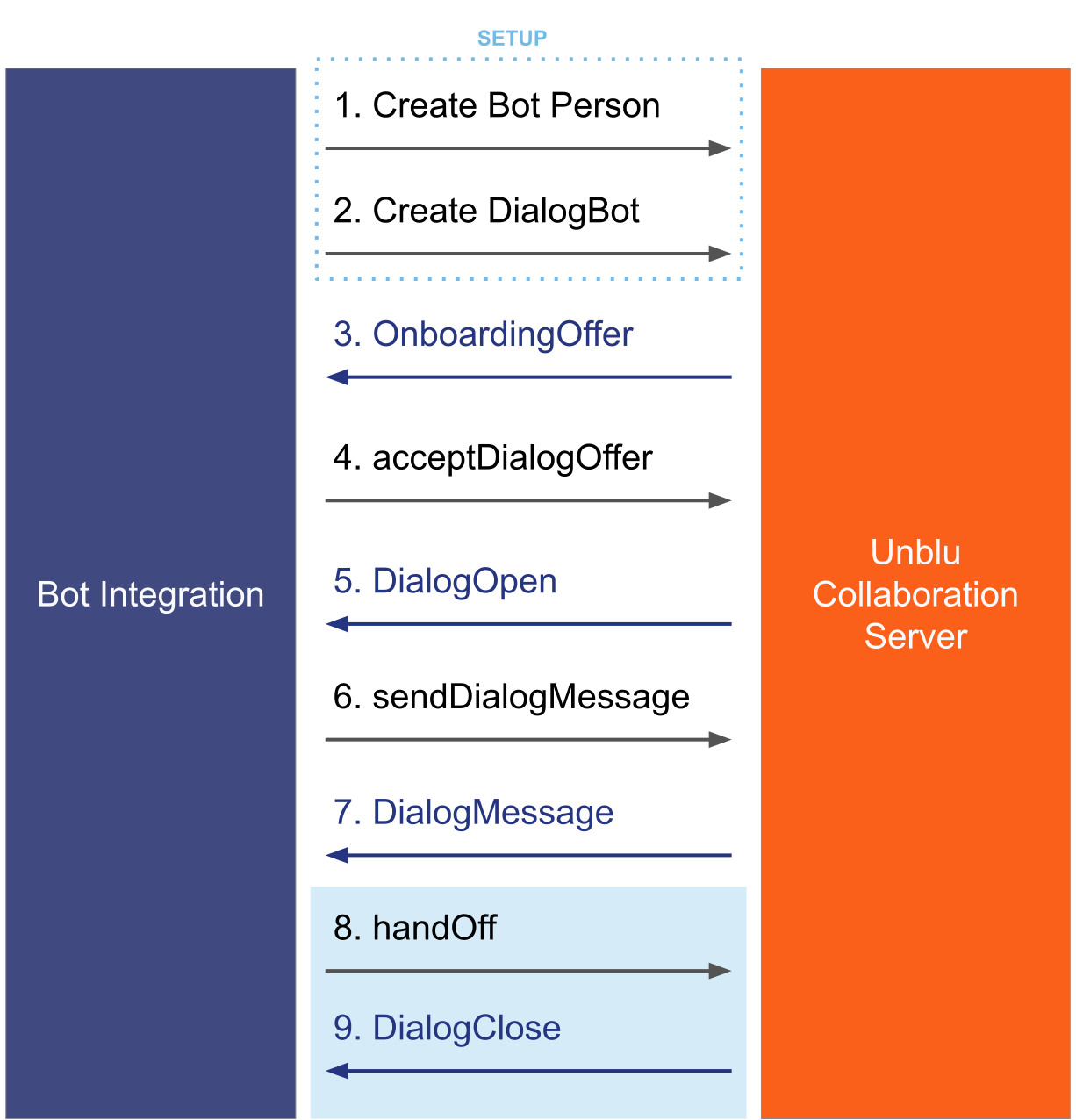
Closing a dialog
When the bot has solved the visitor’s issue, doesn’t know what to do, or has finished its onboarding tasks, it’s time to close the dialog.
There are several ways how this can be accomplished, but the usual way is by calling the /bots/finishDialog web API endpoint. When you finish a dialog with the web API, the reason for ending the dialog may be HAND_OFF, SOLVED, or ABORTED.
HAND_OFF
HAND_OFF means proceeding to the next step of the boarding process. If more than one bot responded to the boarding offer, and the current bot isn’t the last one in the queue, the process is handed over to the next bot in the queue.
If there is no further bot in the queue, what happens depends on the type of dialog.
-
For onboarding dialogs, hand-off will either
-
activate the onboarding participation and put the conversation in the incoming queue if the conversation is a chat request, or
-
activate the person being onboarded and allow them to interact with others for other conversation types or if the person was invited to join an ongoing conversation.
-
-
For reboarding dialogs, this will put the conversation back into the incoming queue if there is no further bot.
-
For offboarding dialogs, this will do one of the following either
-
end the conversation if the offboarding was triggered by ending a conversation, or
-
end the participation of the offboarding person if the offboarding was triggered by that person leaving.
-
SOLVED
SOLVED means that no further bot or human agent is required. The boarding process is stopped with a success indication. Any further bots that responded to the boarding offer will be ignored.
For onboarding and reboarding dialogs, this also:
-
Puts the conversation into the
UNASSIGNEDstate if com.unblu.conversation.lifecycle.enableUnassignedState is enabled and the conversation was initiated by a visitor. -
Ends the conversation if com.unblu.conversation.lifecycle.enableUnassignedState is disabled.
For offboarding dialogs, it also:
-
Ends the conversation if the offboarding was triggered by ending a conversation.
-
Ends the participation of the offboarding person if the offboarding was triggered by the leaving of that person.
ABORTED
ABORTED means that no further bots should be called. The boarding process is stopped with a failure indication. Any further bots that responded to the boarding offer will be ignored.
-
For onboarding dialogs, the participant is directly moved to the offboarding phase and isn’t allowed to enter the conversation.
-
For reboarding dialogs, the conversation is put into the
UNASSIGNEDstate. -
For offboarding dialogs, the participation of the person being offboarded is ended.
This reason can be used when, for example, the visitor doesn’t accept mandatory terms and conditions.
The outbound web API BotDialogClosedRequest
When a dialog is closed, Unblu sends an outbound.bot.dialog.closed outbound request. This may occur as the result of the /bots/finishDialog API call. However, it may also be sent for other reasons: a timeout, the visitor leaves or ends the conversation manually, and so on.
The body of your response must be an empty JSON response.
| Make sure your code integrating the bot can always handle this event and is able to clean up everything related to that dialog, even if the event isn’t expected at that point. |
Responses to bot dialog events
Each bot dialog event that Unblu sends as an outbound request has a response schema associated with it. However, only the schema for outbound requests relating to boarding offers, BotBoardingOfferResponse, has a well-defined body.
For all other bot dialog events, you can respond with an empty JSON response.
Handling user changes
If a visitor logs in during an active bot dialog phase, this may trigger a user change within Unblu. The user change occurs if the following conditions are met:
-
The configuration property com.unblu.authentication.allowVisitorLoginDuringSession is
true -
The configuration property com.unblu.conversation.lifecycle.replaceUserOnLogin is set to
ALWAYSorIF_ACTIVE_CONVERSATIONfor the current conversation
As a result of the user change, the bot’s counterpart in the dialog changes their identity from an anonymous to an authenticated person.
To inform the bot of this change, Unblu sends an outbound.bot.dialog.counterpart_changed outbound request. The body of the request contains both the old and the new person identifying the bot’s counterpart in the dialog. Once this event has been received, any further messages sent by the visitor reference the new person and the new person’s PersonPresence. Unblu makes sure that any messages sent by the bot are received by and displayed to the person’s new identity.
You must ensure that all bot logic referring to the identity of the counterpart person (such as their name, email address, or authentication information) references the new, authenticated person after an outbound.bot.dialog.counterpart_changed outbound request. |
Managing read and delivered states
For information on how to handle message states with dialog bots, refer to Message states for external messengers and dialog bots.
Microsoft Copilot agent dialog bots
Microsoft Copilot agent dialog bots use the Direct Line API 3.0 to communicate directly with Unblu Spark. You configure them in Microsoft Copilot Studio.
For information on setting up an agent for use with Unblu Spark in Microsoft Copilot Studio, refer to Creating Microsoft Copilot Studio agents for Unblu Spark.
See also
-
For more information on webhooks in Unblu, refer to Webhooks technical details.
-
For more information on the webhook events, outbound web API events, and web API endpoints mentioned in this article, refer to the Unblu web API referenceˆ.
-
For information on setting up an agent for use with Unblu Spark in Microsoft Copilot Studio, refer to Creating Microsoft Copilot Studio agents for Unblu Spark.
-
For more information on integrating bots into Unblu Spark, refer to Bot integration.
-
If you’re using a bot to send messages to an external messenger, review External and bots in the article External messenger integration.