Two-factor authentication (2FA)
Two-factor authentication (2FA) adds a second step to the login against Unblu’s built-in user management system. After entering a valid username and password, agents must confirm their identity with a time-based one-time password (TOTP) from an authenticator app on a separate device.
2FA is only available for agents. It isn’t available for visitors.
How two-factor authentication works
When an agent submits valid credentials at the Agent Desk login form and 2FA applies to them, Unblu prompts them in one of two ways:
-
If they haven’t set up 2FA yet, Unblu prompts them to set it up.
-
If they’ve already set up 2FA, Unblu prompts them for the current TOTP from their authenticator app.
Until the agent provides the second authentication factor, they’re partially authenticated: their credentials are valid, but they can’t access the Agent Desk. Once the second factor has been validated, the agent receives their full role and reaches the Agent Desk. Unblu doesn’t prompt for the second factor again on the same device until the validity period set in com.unblu.authentication.2fa.agentValidationTimeout elapses.
An agent who can’t access their authenticator app can provide a recovery code instead of a TOTP. For more information, refer to the Recovery codes section.
Enabling two-factor authentication
You enable 2FA with the configuration property com.unblu.authentication.2fa.agentMode, which takes one of three values:
-
DISABLED: Unblu checks only the username and password, with no second factor. This is the default value. Set this value for technical users who authenticate through the web API.Users with 2FA enabled can’t access the web API. For web API access, local users should instead set up a service principal and create an API secret for it.
-
OPTIONAL: Agents can set up 2FA but aren’t required to. Once an agent has set up 2FA, they must use it every time they log in. -
MANDATORY: Agents must set up 2FA and use it every time they log in. They can’t skip the setup.
How the 2FA mode applies to users
Although the property name refers to agents, Unblu applies the 2FA mode to every user the configuration scope covers, including users with the WEBUSER role. Web users can’t complete an interactive 2FA login, so setting the mode to MANDATORY in a broad scope such as the global or account scope prevents them from logging in.
To require 2FA for agents only, set MANDATORY in a scope that contains only agents, such as a single team or user.
Setting up 2FA as an agent
When 2FA is set to OPTIONAL or MANDATORY, agents are taken to the setup page the first time they log in:
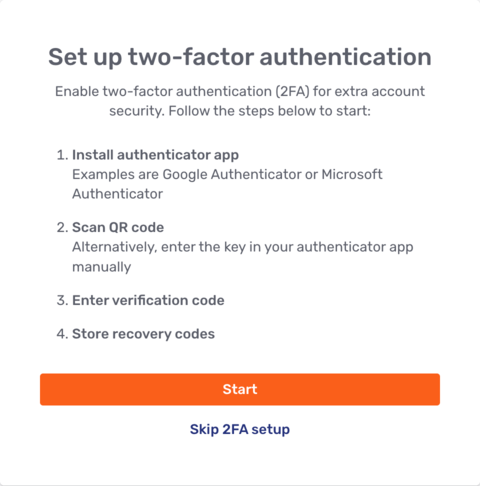
The setup page contains instructions for setting up 2FA, starting with installing an authenticator app.
Once the agent clicks Start, Unblu guides them through the following steps:
-
Scanning the QR code with the authenticator app, or entering the key manually.
-
Entering the current TOTP from the authenticator app on the verification page to confirm the setup.
-
Storing or downloading the recovery codes. For more information, refer to the Recovery codes section.
When the 2FA mode is OPTIONAL, the setup page also offers a Skip 2FA setup option, which lets the agent log in without setting up 2FA.
Recovery codes
Recovery codes let an agent log in when they can’t use their authenticator app. Unblu generates a set of recovery codes when the agent sets up 2FA and displays them once, so the agent must store them somewhere safe.
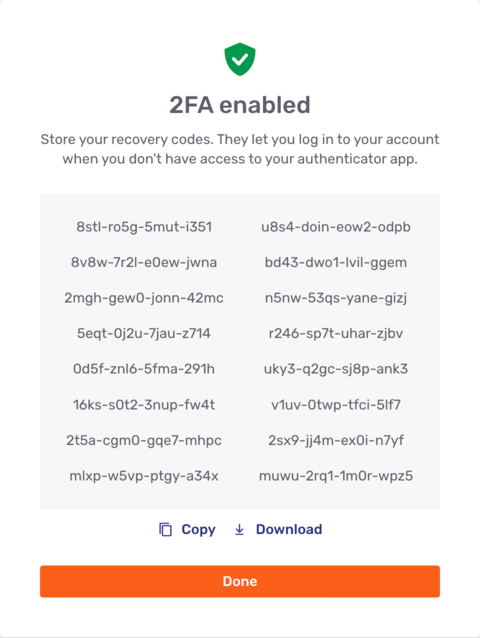
Each recovery code works only once. When an agent logs in with a recovery code instead of a TOTP, that code is used up.
An agent can generate a new set of recovery codes at any time from their own account via the user settings menu. Doing so replaces all the agent’s existing codes.
Resetting two-factor authentication
An agent can reset their own 2FA from the Profile entry of the Agent Desk user menu. Unblu displays a confirmation dialog before resetting 2FA. Once the agent confirms the reset, Unblu logs them out and removes their authenticator secret and recovery codes. The agent then has to set up 2FA again, the same way they did the first time.
An administrator can also reset an agent’s 2FA in the Account Configuration interface. The button to do so is located on the General tab of the user’s details in the User section.
Authentication sources that support 2FA
2FA only works if the authentication source is set to LOCAL. It has no effect with the PROPAGATED authentication source.
Configuration properties
2FA is configured with the following properties:
-
com.unblu.authentication.2fa.agentMode: Sets whether 2FA is disabled, optional, or mandatory for agents, as described in Enabling two-factor authentication. The default is
DISABLED. -
com.unblu.authentication.2fa.agentValidationTimeout: Sets how long, in seconds, a second factor stays valid on a device before the agent has to provide it again. The default is
604800(seven days). -
com.unblu.authentication.2fa.numberOfRecoveryCodes: Sets how many recovery codes Unblu generates when an agent sets up or resets 2FA. The default is
16and the range is 1—24. Changing the value only affects future setups. -
com.unblu.authentication.2fa.qrCodeIssuer: Sets the issuer name shown next to the account in the agent’s authenticator app. The default is
Unblu.
See also
-
For information on the available authentication sources, refer to Authentication and single sign-on (SSO) in self-hosted and on-premises installations.
-
For information on user roles, refer to User roles.