Writing assistance
Unblu provides three writing assistance features in the WYSIWYG editor: spell-checking, autocorrect, and grammar checking. Spell-checking and autocorrect run in the browser as the user types. Grammar checking runs on the Collaboration Server and catches grammatical errors such as incorrect punctuation, spacing, or word choice.
Prerequisites
All three features require the following:
-
A valid license for Unblu Aria.
-
The WYSIWYG editor, enabled for the relevant participant roles. To enable it, add the participant roles to com.unblu.conversation.message.chatMessageAsMarkdownEnabled. The configuration property is in the conversation template scope.
-
Spell-checking is enabled with com.unblu.messenger.enableSpellChecking and is on by default. Autocorrect and grammar checking both require spell-checking to be enabled. Each has its own toggle, described in its section below.
The writing assistance menu
The message input’s language button opens a menu with two sections: Writing assistance and Language.
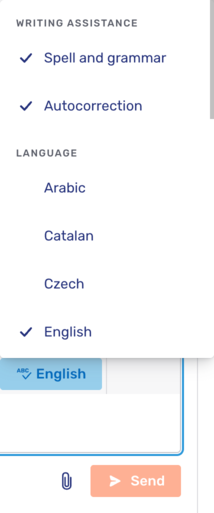
The Writing assistance section contains up to two toggles:
-
Spell and grammar turns spell-checking and grammar checking on or off. For visitors, and whenever grammar checking is disabled, this toggle is labeled Spell check and controls spell-checking only. To set whether spell-checking and grammar checking are on when the message input opens, use com.unblu.form.markdowneditor.spellcheck.spellCheckEnabledByDefault. To remove the toggle from the menu, set com.unblu.form.markdowneditor.spellcheck.showSpellCheckMenuEntry to
false. -
Autocorrection turns autocorrect on or off. To set whether autocorrect is on when the message input opens, use com.unblu.form.markdowneditor.spellcheck.autocorrectEnabledByDefault. To remove the toggle from the menu, set com.unblu.form.markdowneditor.spellcheck.showAutocorrectMenuEntry to
false.
The Language section lists the available languages in alphabetical order. Selecting a language sets the language used for all three features. Within a session, each conversation remembers its selected language.
Spell-checking
The spellchecker runs in the browser using Hunspell, the same spell-checking engine used by LibreOffice, Mozilla Firefox, and Google Chrome. It underlines misspelled words as the user types and offers suggestions for corrections. Spell-checking is available to both agents and visitors.
When spell-checking is active, misspelled words in the message input are underlined in red. Clicking a misspelled word opens a popup with suggested corrections. Selecting a suggestion replaces the misspelled word. The number of suggestions is configurable with com.unblu.form.markdowneditor.spellcheck.spellingMaxSuggestions.
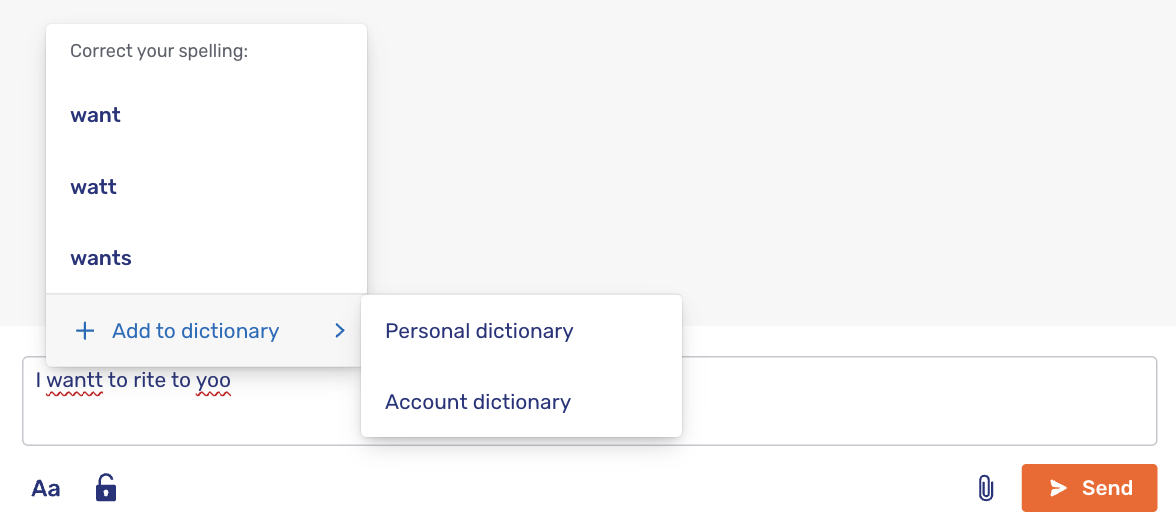
For agents, the popup may also offer the option to add the word to their personal dictionary or to the account dictionary, depending on the dictionaries available to them. These options aren’t available to visitors. Adding a word to a dictionary means the spellchecker no longer flags it as misspelled.
Dictionaries
Dictionaries let users and administrators add words that the spellchecker should accept. This is useful for domain-specific terminology, product names, and other words not found in the standard language dictionaries.
Unblu supports two types of dictionary:
-
Account dictionary: A shared dictionary managed by administrators. Words added to the account dictionary are available to all users in the account.
To disable the account dictionary, set com.unblu.dictionary.showAccountDictionary to
false. -
Personal dictionary: A private dictionary for individual agents. Each agent can manage their own personal dictionary from the user menu.
To disable personal dictionaries, set com.unblu.dictionary.showPersonalDictionary to
false.
Managing the account dictionary
Administrators manage the account dictionary in the Aria interface, on the Account dictionary tab of the Dictionary page. For more information, refer to the Account dictionary section of the Aria interface guide.
You can also manage account dictionary entries through the DictionaryEntryService endpoints of the Unblu web API.
Managing personal dictionaries
Agents can manage their personal dictionary from the user menu. To open it, click the user menu and select Dictionary.
To hide the Dictionary menu item, set com.unblu.ui.usermenu.showManageDictionary to false.
Agents can also add words directly from the spellcheck popup that appears when they click a misspelled word.
Adding custom dictionary files
You can upload custom Hunspell dictionary files to replace a bundled dictionary, or to add a dictionary for a supported language that doesn’t ship with one. For more information, refer to the Custom dictionary files section of the Aria interface guide.
You can also manage custom dictionaries through the Dictionaries service endpoints of the Unblu web API.
Autocorrect
As the agent types, autocorrect automatically fixes typos and common mistakes such as double spaces, doubled punctuation, and missing capitalization at the start of a sentence. It’s available to agents in the Agent Desk. Autocorrect is a preview feature and is turned off by default.
To enable autocorrect for an account, set com.unblu.messenger.enableAutocorrect to true. Spell-checking must also be enabled.
When autocorrect changes a word, it underlines the correction in gray. Clicking an autocorrected word opens a popup where the agent can revert to the original text or pick an alternative suggestion. The number of alternatives shown is set with com.unblu.form.markdowneditor.spellcheck.autocorrectMaxAlternatives.
Autocorrect relies on word-frequency data for the selected language. If that data isn’t available for the selected language, autocorrect turns off and notifies the agent.
You can turn individual autocorrect behaviors on or off:
-
com.unblu.form.markdowneditor.autocorrect.punctuationCleanupEnabled: Cleans up spacing and punctuation, such as double spaces or double periods.
-
com.unblu.form.markdowneditor.autocorrect.sentenceStartCapitalizationEnabled: Capitalizes the first word of a sentence.
-
com.unblu.form.markdowneditor.autocorrect.spellcheckCapitalizationEnabled: Corrects a word the spellchecker accepts only when capitalized, such as a German noun or an abbreviation.
-
com.unblu.form.markdowneditor.autocorrect.previousWordCorrectionEnabled: Re-checks and corrects the previous word when the agent starts a new one.
Additional properties tune how aggressively autocorrect applies changes, including com.unblu.form.markdowneditor.autocorrect.minWordLength, com.unblu.form.markdowneditor.autocorrect.confidenceRatio, and com.unblu.form.markdowneditor.autocorrect.distancePenalty.
Grammar checking
Grammar checking uses LanguageTool, an open source grammar checker that runs inside the Collaboration Server. It’s available to agents only and is enabled by default.
Because the check runs on the server, it takes about half a second, rather than being instantaneous like the browser-based spellchecker. The check is deterministic: the same text always produces the same result, and no generative AI is involved. Text sent for grammar checking is processed in memory; Unblu doesn’t store it or send it to a third-party service.
Grammar errors are underlined in blue, which distinguishes them from the red underlines used for spelling errors. Clicking a grammar error opens a popup with the checker’s suggestions.
Grammar checking is limited in scope by design. It catches errors that a fluent writer might otherwise miss, such as a verb that doesn’t agree with its subject, a missing comma, or a date that doesn’t match the day of the week. It checks grammar only. Spelling is still handled by the spellchecker.
Agents can turn grammar checking on and off with the Spell and grammar toggle in the writing assistance menu. To disable it for an entire account, set com.unblu.messenger.enableGrammarChecking to false.
Overlapping errors
When a word or phrase is flagged by more than one writing assistance feature, the message input shows only the highest-priority highlight, in this order:
-
Grammar checking
-
Autocorrect
-
Spell-checking
For example, if a word is both autocorrected and flagged for a grammatical error, only the blue grammar underline appears.
Supported languages
Spell-checking supports the languages listed below. Unblu includes a spellcheck dictionary for some of them. For the others, you must upload a custom dictionary before you can use the spellchecker in that language.
| Code | Language | Bundled dictionary |
|---|---|---|
ar |
Arabic |
Yes |
ca |
Catalan |
No |
cs |
Czech |
No |
de |
German |
Yes |
en |
English |
Yes |
es |
Spanish |
Yes |
fr |
French |
Yes |
it |
Italian |
Yes |
pl |
Polish |
Yes |
pt |
Portuguese |
Yes |
ro |
Romanian |
Yes |
ru |
Russian |
Yes |
sk |
Slovak |
Yes |
sl |
Slovenian |
Yes |
sr |
Serbian |
Yes |
sv |
Swedish |
Yes |
th |
Thai |
No |
zh-Hans |
Simplified Chinese |
No |
zh-Hant |
Traditional Chinese |
No |
In some cases, the bundled dictionary is a specific regional variant:
-
German uses Swiss German (de_CH).
-
English uses American English (en_US).
-
Portuguese uses Brazilian Portuguese (pt_BR).
-
Serbian uses the Cyrillic script.
For a language without a bundled dictionary, you can add one by uploading a custom dictionary file. You can also replace the bundled dictionary for any language. Refer to Adding custom dictionary files for details.
Grammar checking languages
Grammar checking is available for the subset of the spell-checking languages that the bundled LanguageTool engine supports. Not every language with spell-checking also has grammar checking; if LanguageTool doesn’t support the selected language, grammar checking produces no results for it.
LanguageTool checks a specific regional variant of a language rather than the base language. Unblu maps each base language to a default variant with com.unblu.core.server.collaboration.textcheck.defaultVariants. By default, English maps to en-US, German to de-DE, and Portuguese to pt-PT. You can change these mappings to suit your target market, provided LanguageTool supports the variant.
Customizing the appearance
Each feature underlines the text it flags in a different color, and applies a background color when the flagged text is selected. You can customize both colors for each feature:
-
Spelling errors: com.unblu.form.markdowneditor.spellcheck.spellingErrorUnderlineColor (red by default) and com.unblu.form.markdowneditor.spellcheck.spellingErrorSelectedBackgroundColor.
-
Autocorrections: com.unblu.form.markdowneditor.spellcheck.autocorrectUnderlineColor (gray by default) and com.unblu.form.markdowneditor.spellcheck.autocorrectSelectedBackgroundColor.
-
Grammar errors: com.unblu.form.markdowneditor.spellcheck.grammarUnderlineColor (blue by default) and com.unblu.form.markdowneditor.spellcheck.grammarSelectedBackgroundColor.
Performance and resource considerations
Grammar checking is the only writing assistance feature that runs on the server, so it’s the only one with a server-side resource cost. The grammar checker loads a set of rules and dictionaries for each language it checks, which is memory-intensive.
Compiling a language’s rules for the first time is slow and can take 5—10 seconds. To avoid this delay for English, the Collaboration Server pre-warms it at startup. Every other language is loaded on first use, so its first check takes 5—10 seconds while subsequent checks are fast. Languages that haven’t been used for a while are unloaded to reclaim memory, though some memory remains allocated until the next restart.
Under load, the grammar checker increases CPU usage on worker nodes by roughly 20 % and uses between 100 MB and 400 MB of additional memory, depending on which languages are active. Much of this is native, off-heap memory, so provision additional memory for the Collaboration Server accordingly. In Kubernetes deployments, a container that exceeds its memory limit is terminated, and native memory counts toward that limit. If you leave grammar checking enabled in an on-premises deployment, check the Collaboration Server’s memory limits so that the additional native memory doesn’t cause out-of-memory terminations.
See also
-
For information on configuring the WYSIWYG editor that the writing assistance features integrate with, refer to WYSIWYG editor.
-
For information on Markdown support in Unblu, refer to Markdown in Unblu.
-
For information on managing the entries in account and personal dictionaries through the Unblu web API, refer to the
DictionaryEntryServicesection of the Unblu web API reference. -
For information on managing custom dictionary files through the Unblu web API, refer to the
Dictionariessection of the Unblu web API reference.